
On this page 8 sections
“My hosting company makes backups, so I’m covered.” We hear this a lot, and it’s half right. Host backups are useful. But if they’re the *only* copy of your website, you’re trusting one company, one system and one account with everything you’ve built.
This guide explains the difference between host backups and off-site backups, where host backups fall short, and what a sensible WordPress backup setup looks like.
What’s the difference?
Host backups are made by your hosting company, usually automatically, and stored on their own systems. You restore them from your hosting control panel. Off-site backups are copies of your website (files and database) stored somewhere *independent* of your hosting: a separate cloud storage service or a backup provider that isn’t your host. Both are backups. The difference is what happens when something goes wrong with your host or your hosting account.Where host backups fall short
Host backups are a good first layer. They’re just not enough on their own, for five reasons.1. They live with the thing they’re protecting
If your backups are stored on the same server, or with the same company, as your website, a big enough problem can take out both: a failed server, a data-centre incident, a mistake during a migration. One copy plus another copy in the same place is still one point of failure.2. Your access depends on your account
Host backups are only reachable through your hosting account. If that account is suspended over a billing problem, locked after a security incident, or closed when you switch hosts, your backups can go with it. The moment you most need a backup is often exactly when you can’t log in.3. A hacked account can mean hacked backups
If someone gets into your hosting account, they can usually reach the backups too, and some attacks try to delete them on purpose. Backups stored with a separate provider, with separate logins, are out of reach.4. Retention is often short
Some hosts keep backups for only a few days, or just one or two copies. But many problems are noticed weeks later: a hacked file quietly added, a plugin conflict that broke a form nobody tested. If your oldest backup is from four days ago and the problem started three weeks ago, every backup you have contains the problem.5. Nobody has tested the restore
A backup you’ve never restored is a hope, not a plan. Host restores may only allow “the whole account” rather than one site, may take a support ticket, or may not include your database the way you expect. None of this means your host is bad. It means backups need to be independent of the thing they protect.The 3-2-1 backup rule
The classic rule IT teams use works perfectly for websites:-
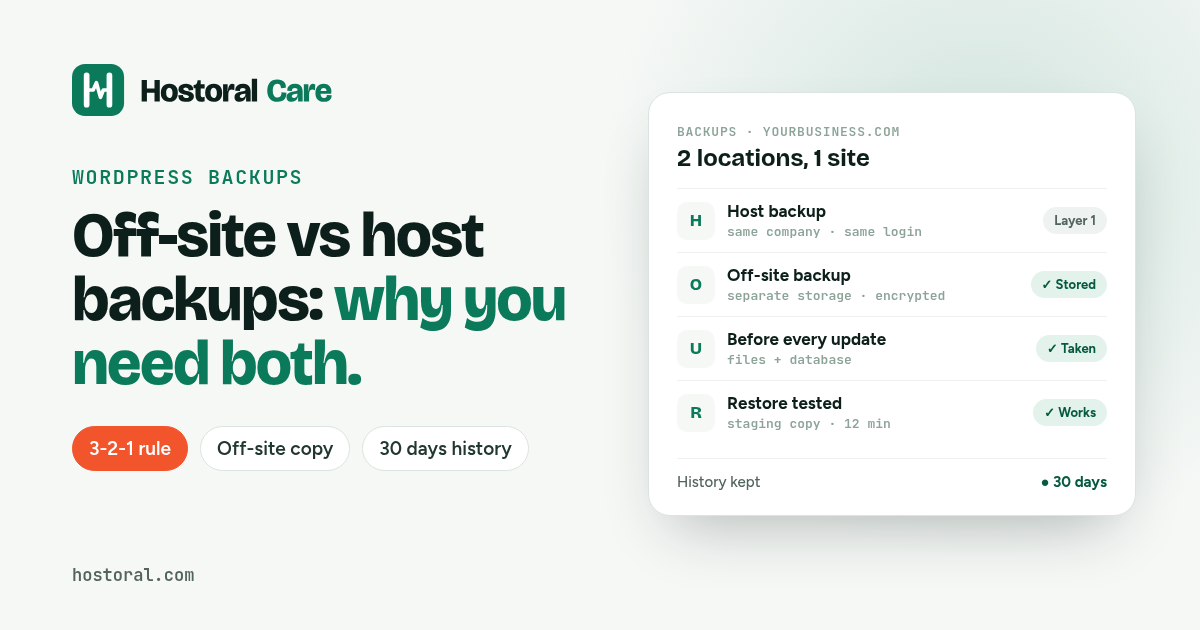
- 3 copies of your data (your live site plus two backups)
- 2 different storage locations or types
- 1 copy off-site, somewhere other than your hosting
What a good WordPress backup setup looks like
-
- Everything is backed up: files (themes, plugins, uploads) *and* the database. A file backup without the database loses all your pages, posts and orders.
- Frequency matches how often the site changes. Weekly is fine for most business sites that change a few times a month. A busy online shop taking orders every day should back up daily.
- At least 30 days of history, so you can go back to before a problem started.
- Stored off-site, with separate login details from your hosting.
- A backup before every update. This is your undo button when an update goes wrong.
- Restores are tested. Restore a backup to a staging copy now and then, to prove it works and to know how long it takes.
How to add off-site backups
You have two practical options. Use a backup plugin with cloud storage. Plugins such as UpdraftPlus, BlogVault or Jetpack VaultPress Backup can send backups to separate storage (Google Drive, Dropbox, Amazon S3 or their own cloud) on a schedule. Set it up once, then check now and then that new backups are actually arriving. Keep the storage login separate from your hosting login. Let a maintenance plan handle it. A WordPress maintenance plan takes the backups, stores them off-site, keeps them for weeks and restores them for you. Usually it also takes a fresh backup before every update, which is exactly when you’re most likely to need one.How to test a restore (in 15 minutes)
-
- Create a staging site, or a test copy on a subdomain.
- Restore your latest off-site backup to it.
- Click through the homepage, a few pages, the contact form and, for shops, a product and the cart.
- Note how long it took. That’s roughly your real recovery time.
How Hostoral Care handles backups
With Hostoral Care, our WordPress maintenance plan, every site gets:-
- weekly backups of files and database, stored off-site, separate from your hosting server
- 30 days of backup history
- a backup right before every update, so a bad update can be rolled back quickly
- free restores when you need one
- every backup listed in your 1-page monthly report, so you can see they’re happening