
On this page 10 sections
Open your WordPress dashboard on any given week and there’s a good chance a few plugins are waiting for an update. Update too rarely and you leave known security holes open. Update carelessly and you can break your site on a Friday afternoon. So how often should you really update WordPress plugins, and what’s the safe way to do it?
The short answer
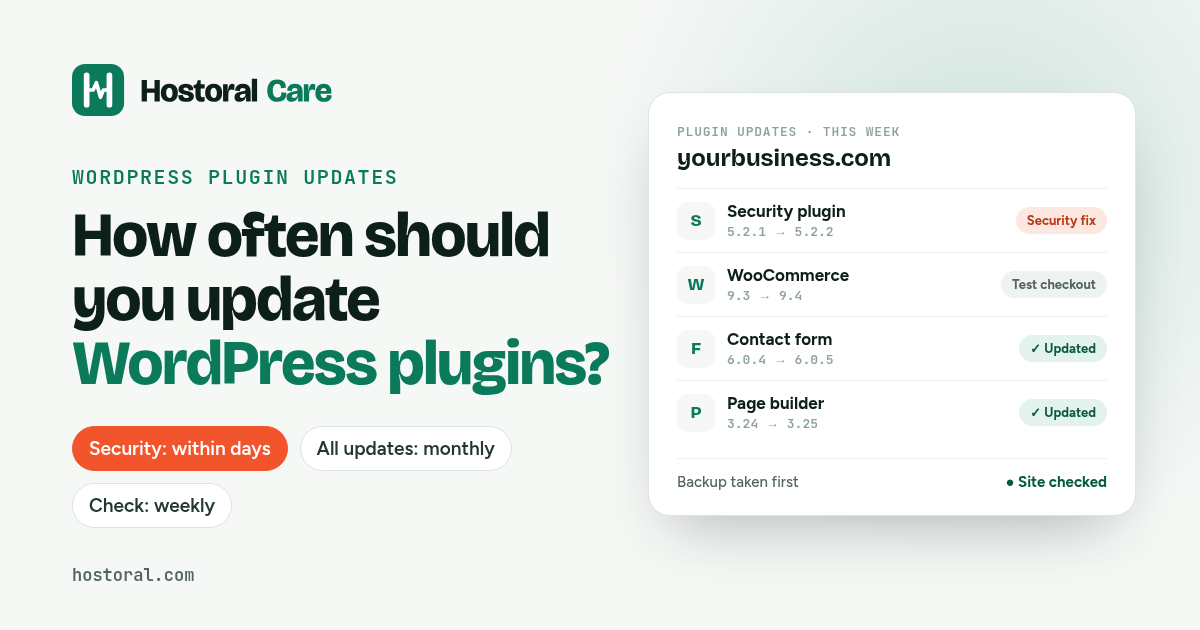
- Security updates: within a few days. Don’t wait for your monthly routine.
- All other plugin updates: at least once a month.
- Check for updates: every week. It takes two minutes and tells you whether anything urgent is waiting.
That’s the schedule we use for the sites we look after. The rest of this guide explains why, and how to update without breaking anything.
Why plugin updates matter so much
WordPress core is maintained by a large team and gets a lot of scrutiny. Plugins are written by thousands of different developers, from big companies to one person working evenings. Security researchers consistently report that the large majority of WordPress vulnerabilities are found in plugins, not in WordPress core.
The timing is what catches people out. When a plugin developer fixes a security hole, the fix (and usually a public note about it) is released at the same time. From that moment, attackers know exactly what to look for. Automated bots scan the web for sites still running the old version, often within days. Most hacked WordPress sites weren’t targeted personally. They just weren’t updated.
That’s why “I’ll do all my updates once a quarter” isn’t enough anymore.
Not all updates are the same
It helps to know what kind of update you’re looking at:
- Security releases fix a vulnerability. Install these quickly. The changelog usually says “security fix” or mentions a CVE.
- Bug-fix releases (for example 4.2.1 to 4.2.2) fix problems and rarely change how things work. Low risk, include them in your monthly round.
- Major releases (for example 4.x to 5.0) can change features, settings or how the plugin works with others. Read the changelog first and test carefully, especially for page builders, WooCommerce and its extensions, and membership or booking plugins.
Each plugin’s page on WordPress.org has a “Changelog” tab. Thirty seconds of reading tells you which kind of update you’re dealing with.
Should you turn on automatic updates?
Since WordPress 5.5 you can turn on automatic updates for individual plugins. WordPress also installs minor core security releases automatically by default.
Automatic updates are a good idea for:
- simple, well-maintained plugins that rarely change much (security plugins are a good example)
- sites with very few plugins
- sites you have no time to look after at all
Be more careful with automatic updates for:
- WooCommerce and its extensions: a broken checkout costs you sales immediately.
- Page builders like Elementor, where an update can change how pages look.
- Plugins that depend on each other, where one updating before the other can cause errors.
The main weakness of automatic updates is that nobody checks the site afterwards. If an update breaks your contact form, you may only find out when a customer tells you, or never.
A safe plugin update routine
Here’s the routine we follow. It takes 20 to 40 minutes a month for a typical site.
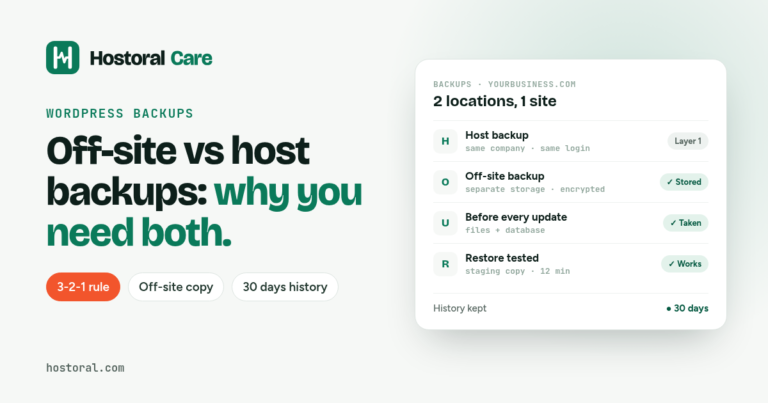
- Take a full backup first: files and database, stored somewhere other than your server. (Here’s why backups on your host alone aren’t enough.)
- Read the changelogs: anything marked as a major release or with big changes gets extra attention.
- Use a staging site if you have one: test the updates on a copy first. Many hosts offer one-click staging.
- Update in small groups: not all 25 at once. If something breaks, you’ll know which plugin caused it.
- Check the important pages: homepage, a few key pages, the contact form (send a test message), and for shops the cart and checkout.
- Watch for 24 hours: check that forms still arrive and that there are no new errors.
- Write down what you updated: version numbers and dates. When something odd happens two weeks later, you’ll be glad you did.
If something does break, restore the backup, then update that plugin on its own and investigate, or wait for the developer’s next fix.
Watch out for abandoned plugins
Updating only works if the developer is still releasing updates. Some plugins quietly stop being maintained, and an abandoned plugin will never get a fix for its next security hole.
On a plugin’s WordPress.org page, check “Last updated” and “Tested up to”. If a plugin hasn’t been updated in a year or more, or hasn’t been tested with recent WordPress versions, start looking for a maintained alternative. Replacing it on a quiet day is far easier than replacing it after it’s been exploited.
Don’t forget themes and PHP
Themes are updated the same way as plugins and can have security holes too. Delete themes you don’t use (keep one default theme as a fallback).
PHP is the language your server runs. Old PHP versions stop receiving security fixes, and newer versions are usually faster. Check your PHP version in Tools → Site Health and update it through your hosting panel, after a backup and a check that your plugins support the new version.
A simple maintenance schedule
| How often | What to do |
|---|---|
| All the time | Uptime monitoring alerts you if the site goes down |
| Every week | Check for updates; install security releases within days |
| Every month | Backup, then update plugins, themes and core; test key pages |
| Every 3 months | Review plugins: remove unused ones, replace abandoned ones; check the PHP version |
Or let us do it
If this routine sounds like a job you’d rather not have, that’s exactly what Hostoral Care is for. For $15 per site per month we take a backup, update WordPress, plugins, themes and PHP, check your site still works, and roll back if anything goes wrong. You also get weekly off-site backups, 24/7 uptime monitoring, one small fix a month and a 1-page report showing every update with version numbers.
It works for any WordPress site, wherever it’s hosted, with no contract.
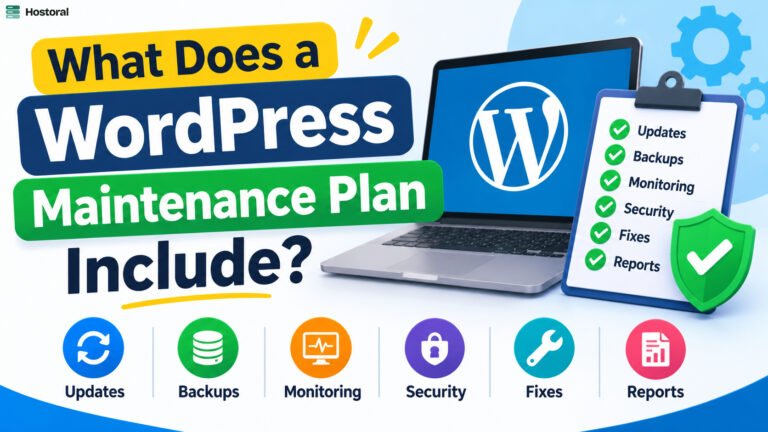
Want the full picture of what good maintenance covers? Read What does a WordPress maintenance plan include?
FAQ
Is it safe to update all plugins at once?
It’s usually fine on a simple site with a recent backup, but if something breaks you won’t know which plugin caused it. Updating in small groups and checking the site in between is safer, especially for shops.
What should I do if a plugin update breaks my site?
Restore the backup you took before updating. Then update the plugins one at a time to find the one causing the problem, and check its support forum. Often the developer has already released a fix.
Do I need to update plugins I’ve deactivated?
Better to delete them. Deactivated plugins can still contain vulnerable files on your server. If you don’t use a plugin, remove it.